
Remove PDF Password: Unlock Your Password-Protected PDF Files with PDF Translator Pro
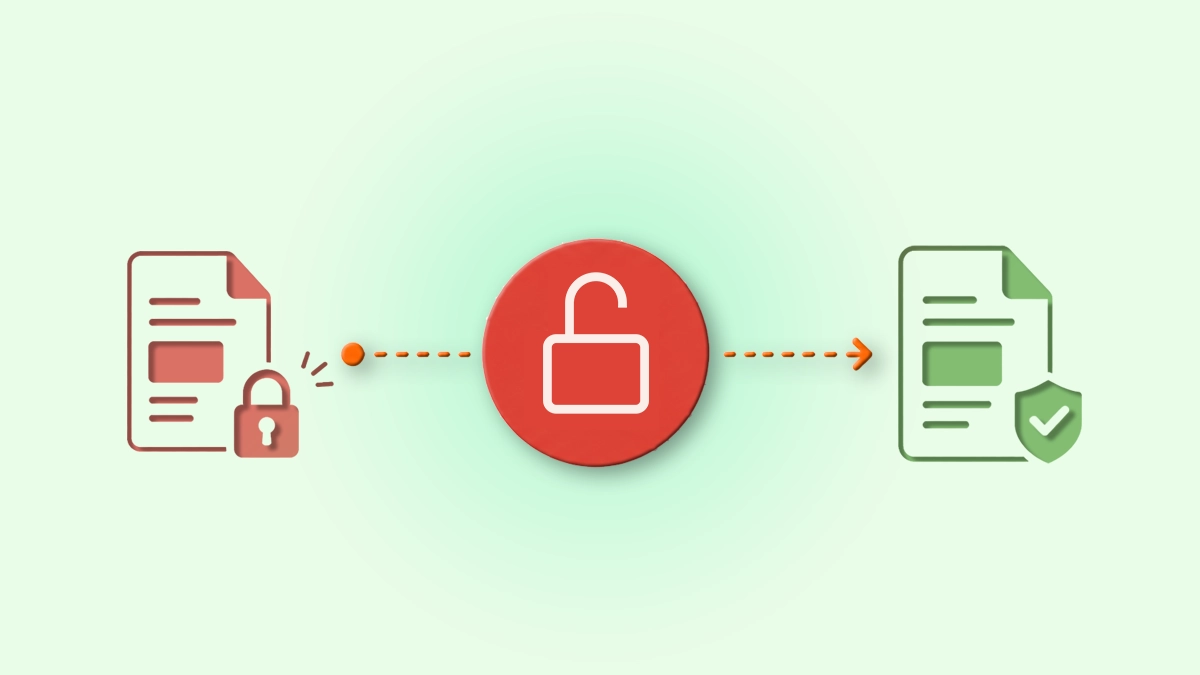
Password-protected PDFs can become an obstacle when you need to edit, share, or process them without re-entering a password every time. Unprotect PDF in PDF Translator Pro removes the password from any PDF you own — directly in your browser, in seconds. You provide the current password once, and the result is an unlocked document you can use freely.
If you've password-protected a document and no longer need that restriction, or you're working with a file that prompts for a password every time it opens, Unprotect PDF removes the protection cleanly and returns a standard PDF.
How to Remove a PDF Password
The process takes under a minute:
- Open PDF Translator Pro and navigate to Unprotect PDF from the main menu.
- Upload your PDF by clicking the upload zone or dragging the file onto it. The tool will confirm whether the file is password protected.
- Optionally, click the output filename to rename the unlocked document before downloading.
- Click Remove Password. A dialog will open asking for the current password.
- Enter the password and click Unlock. The file is processed on the server and the unlocked document downloads automatically.
Entering the Password
When the password dialog opens, enter the current password for the document and click Unlock. If the password field is left empty, the form will not submit. If the password is incorrect, an error message is shown and you can try again — the file is not affected.
You must know the current password to remove protection. This tool cannot bypass or crack passwords — it requires the correct password, which ensures only the document's owner can remove the protection.
Protection Status Detection
After upload, the tool automatically detects whether the file is password protected and displays the status on screen. If the file is already unprotected, this is indicated before you proceed — saving you credits on a file that doesn't need processing.
Output File
The unlocked document is saved as [original filename]_unprotected.pdf by default. To use a different name, click the filename shown in the panel before processing — a rename dialog will open where you can type any name you prefer.
Cost
Removing password protection costs 2 credits. The cost and your current credit balance are displayed in the panel before you confirm, so there are no surprises. If your balance is insufficient, the exact shortfall is shown and the app takes you to the packages page.
Tips
- Check the protection status before proceeding. The tool shows whether the file is password protected after upload. If it isn't, there's no need to process it.
- The password must be correct. If you've forgotten the password, this tool cannot help — there is no bypass mechanism. Only the correct password unlocks the file.
- Remove protection before editing or merging. Tools like Fill Out PDF and Merge PDF work on standard PDFs. If your source file is password protected, remove the protection first, then proceed with other operations.
- Re-protect after editing if needed. If you remove protection to make changes and want to secure the document again afterwards, use Protect PDF to add a new password to the finished version.
- Rename the output for clarity. The default name appends _unprotected. If you're managing multiple versions, a more descriptive name keeps things organised.
Part of the PDF Translator Pro Suite
Unprotect PDF shares the same account and credit balance as Protect PDF, Merge PDF, Split PDF, Compress PDF, Translate PDF, Fill Out PDF, and File Share. Unlock a document, edit it, protect it again, and share it — all from the same platform.
To get started, open Unprotect PDF from the main menu and upload your document.
Back to blog

