
Split PDF: Extract Any Pages from a PDF Document with PDF Translate Pro
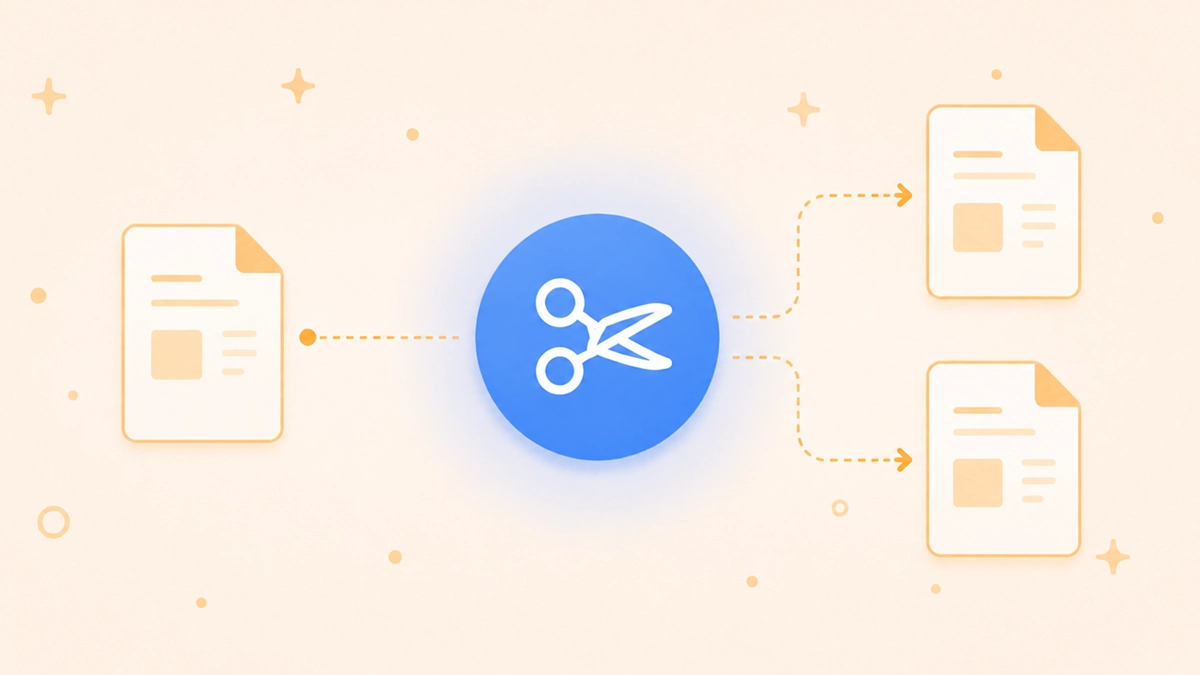
Not every page in a PDF belongs in every document. Split PDF in PDF Translator Pro lets you pick exactly which pages to extract — individually or as ranges — rearrange them into any order, and download a new PDF containing only what you need. No software to install, no page limits imposed by the tool.
Whether you need a single chapter from a report, specific pages from a contract, or a custom selection pulled from a longer document, Split PDF gives you precise control. Select pages one at a time, add ranges in bulk, reorder the segments, and render the result — all in your browser.
How to Split a PDF
The process is straightforward:
- Open PDF Translator Pro and navigate to Split PDF from the main menu.
- Upload your PDF by clicking the upload zone or dragging the file onto it.
- Use the + Page button to add individual pages by number, or + Range to add a range of consecutive pages at once.
- Review the page timeline. Each segment appears as a block — drag blocks left or right to reorder them in the output.
- To remove a segment, hover over it and click the X button in its top-right corner.
- Check the result preview on the right to confirm the page selection and total count.
- Optionally, click the output filename to rename the extracted document before downloading.
- Click Render Pages. The selected pages are extracted and the finished document downloads automatically.
Selecting Pages and Ranges
Two selection modes cover any use case:
- + Page — opens a dialog where you enter a single page number. Useful when you need specific non-consecutive pages from the document.
- + Range — opens a dialog where you enter a start and end page number. The entire range is added as a single segment. Useful for extracting chapters or sections.
You can mix single pages and ranges freely. For example, you could add pages 1–3 as a range, then add page 7 individually, then add pages 10–12 as another range. Each segment appears in the timeline in the order it was added.
Page numbers are validated automatically — values outside the document's page count are clamped to the nearest valid page, and if a range is entered with the start greater than the end, the values are swapped automatically.
Reordering Segments
The order of segments in the timeline determines the order of pages in the output. The leftmost segment becomes the first pages of the extracted document. Drag any segment to a new position in the timeline to change the sequence. This lets you not only extract pages but rearrange them — for example, pulling the last section of a document to the front.
Output File
The extracted document is saved as extracted.pdf by default. To use a different name, click the filename shown above the result preview — a rename dialog will open where you can type any name you prefer. The change applies to the downloaded file only; the original PDF is not modified.
Result Preview
Before rendering, the panel on the right shows a summary of your selection: the total number of pages that will be included, the list of selected pages, and how many pages from the original will be excluded. Use this to verify the selection is correct before spending credits.
Cost
The cost is calculated based on the number of pages selected and is shown in the panel before you confirm. Your current credit balance is displayed alongside it, so you can see at a glance whether you have enough. If your balance is insufficient, the exact shortfall is shown and the app takes you to the packages page.
Tips for Best Results
- Use ranges for consecutive pages. Adding pages 5–20 as a single range is faster than adding 16 individual pages — and easier to adjust if the range turns out to be slightly off.
- Check the result preview before rendering. The summary panel shows exactly which pages are included. A quick review before clicking Render Pages avoids spending credits on an incorrect selection.
- Reorder segments to restructure the document. Split PDF is not just for extraction — you can rearrange segments to produce a document where the pages appear in a completely different order than the original.
- Rename the output file before rendering. If you're extracting multiple sets of pages from the same document in separate sessions, descriptive filenames make it easier to keep the results organised.
- Add ranges first, then fill in individual pages. For large documents, it's often faster to add the main range and then add any additional scattered pages individually rather than building the selection page by page.
Also Available on the Mobile App
Split PDF is also available in the PDF Translator Pro mobile app. If you're working on your phone or tablet, you can upload a PDF from your device and extract pages directly — the same credit balance applies across both platforms.
Part of the PDF Translator Pro Suite
Split PDF shares the same account and credit balance as Merge PDF, Translate PDF, Fill Out PDF, Sign PDF, and File Share. Extract the pages you need, merge them with other documents, translate the result — all from the same platform without switching tools.
To get started, open Split PDF from the main menu and upload your document.
Back to blog

