
Protect PDF: Add Password Protection to Your PDF Documents
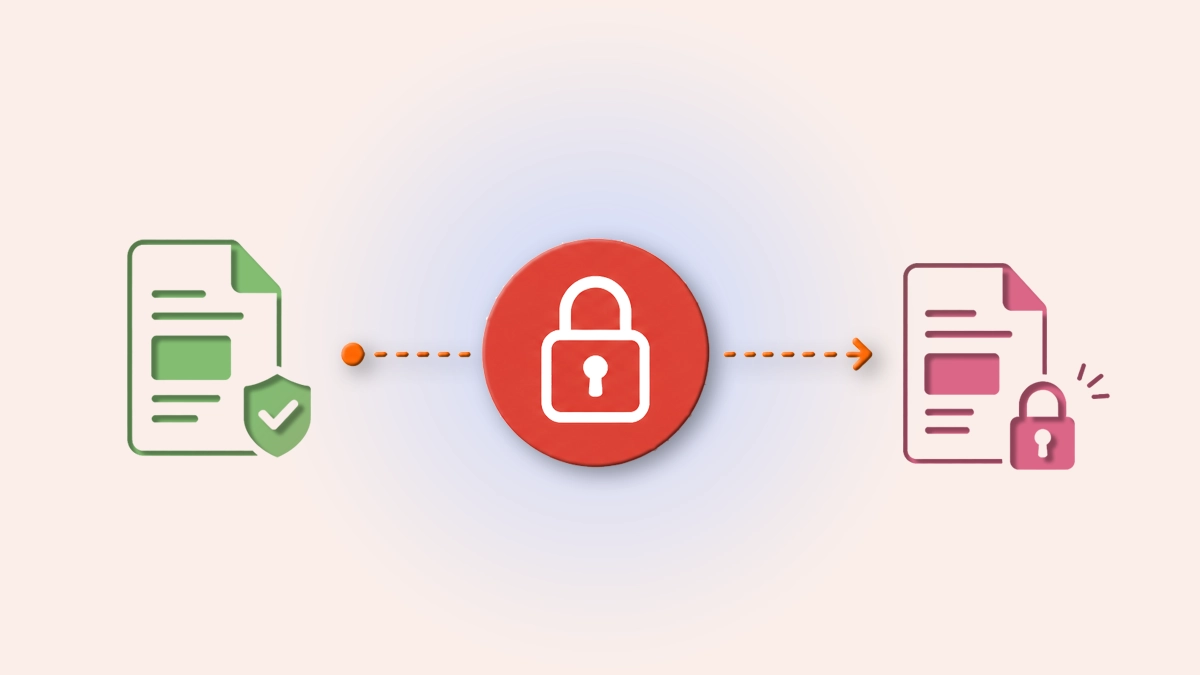
Sensitive documents shouldn't be left open to anyone who receives them. Protect PDF in PDF Translator Pro adds password protection to any PDF file directly in your browser — no software to install, no file size concerns. Once protected, the document can only be opened by someone who knows the password.
Whether you're sending a contract, sharing a confidential report, or storing personal documents, password protection ensures that only the intended recipient can open the file. Protect PDF applies the protection server-side and returns the secured document ready to download.
How to Password-Protect a PDF
The process takes under a minute:
- Open PDF Translator Pro and navigate to Protect PDF from the main menu.
- Upload your PDF by clicking the upload zone or dragging the file onto it.
- Optionally, click the output filename to rename the protected document before downloading.
- Click Add Password. A dialog will open where you enter your chosen password and confirm it.
- Click Protect. The file is encrypted on the server and the protected document downloads automatically.
Setting a Password
When the password dialog opens, enter your password in the first field and repeat it in the confirmation field. The password must be at least 4 characters long and both fields must match before the form can be submitted. Pressing Enter on the confirmation field submits the form directly.
Choose a password that's strong enough to protect the document but that you — or the recipient — will not forget. There is no password recovery option: a lost password means the document cannot be opened.
Already-Protected Files
If you upload a PDF that already has password protection, the tool detects this and displays an indicator on the file. The action button changes to Change Password, allowing you to replace the existing password with a new one. The workflow is the same — enter and confirm the new password, then click Protect.
Output File
The protected document is saved as [original filename]_protected.pdf by default, keeping it easy to distinguish from the unprotected source. To use a different name, click the filename shown in the panel before protecting — a rename dialog will open where you can type any name you prefer.
Cost
Protecting a PDF costs 2 credits. The cost and your current credit balance are displayed in the panel before you confirm, so there are no surprises. If your balance is insufficient, the exact shortfall is shown and the app takes you to the packages page.
Tips for Best Results
- Use a password you can share securely. If the recipient needs to open the file, you'll need to send them the password separately — through a different channel than the PDF itself.
- Keep a record of the password. There is no recovery mechanism. If the password is lost, the protected document cannot be opened by anyone, including you.
- Protect after finalising the document. If you need to make further edits — filling out fields, adding a signature, translating — do that first. Password protection is best applied to the finished version.
- Rename the output before protecting. The default name appends _protected, but a more descriptive name can be useful if you're managing several versions of the same document.
- Use Protect alongside File Share for maximum control. Password-protect the document before sharing it via File Share — the recipient gets a link and needs the password to open it.
Also Available on the Mobile App
Protect PDF is also available in the PDF Translator Pro mobile app. If you're on your phone or tablet, you can upload a PDF from your device and add password protection directly — the same credit balance applies across both platforms. Check out how to do it in the app in this article.
Part of the PDF Translator Pro Suite
Protect PDF shares the same account and credit balance as Merge PDF, Split PDF, Compress PDF, Translate PDF, Fill Out PDF, Sign PDF, and File Share. Finalise your document, protect it, and share it — all from the same platform without switching tools.
To get started, open Protect PDF from the main menu and upload your document.
Back to blog

