
How to Print Multiple PDF Files on Mac and Windows
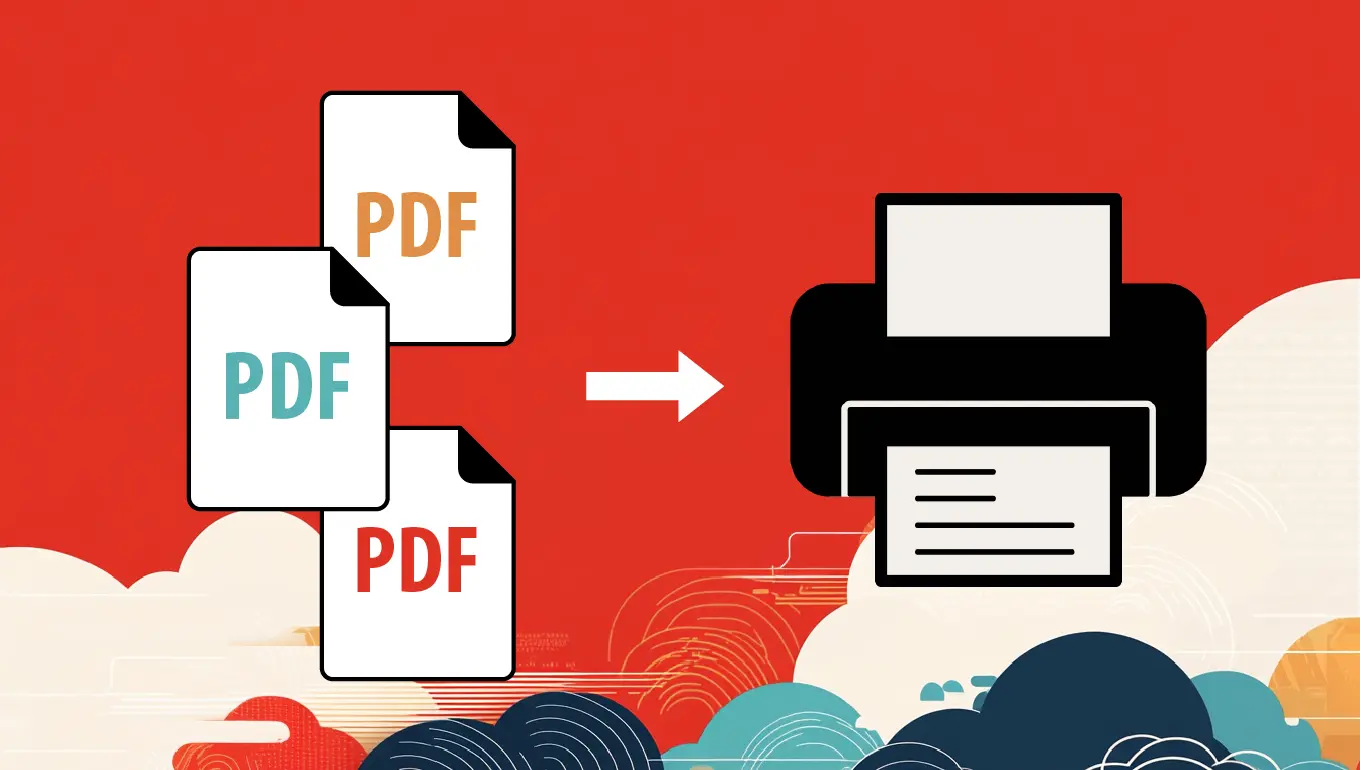
Printing multiple PDF files at once can be a time-saving task, especially if you deal with a large volume of documents regularly. There are efficient methods for both Mac or a Windows to batch print PDFs without opening each file individually. This guide will walk you through the most popular techniques for both Mac and Windows, making your printing process smooth and hassle-free.
I. Printing Multiple PDFs on Mac
Mac users benefit from a streamlined operating system with several built-in features that make it easy to handle multiple PDF files at once. Here are some of the most effective methods:
1. Using Finder and Preview
The easiest way to print multiple PDFs on a Mac is through Finder and Preview, the default file viewer for macOS. Here is how:
- Open Finder: Navigate to the folder containing your PDF files.
- Select the PDFs: Hold down the Command key and click on each PDF file you want to print. If you want to select all files in a folder, you can use Command + A.
- Open with Preview: With all the files selected, right-click and choose "Open With" > "Preview."
- Print the Files: In Preview, go to File > Print. This will open the print dialog where you can choose your printer, set the number of copies, and adjust any other settings. Finally, click Print to start the job.
This method is simple and effective for most users. However, it’s important to note that this process may combine all selected PDFs into a single print job, so they will print in sequence.
2. Automator Workflow
For those who frequently need to print multiple PDFs, creating an Automator workflow can automate the task:
- Open Automator: You can find Automator in your Applications folder.
- Create a New Workflow: Select "Workflow" when prompted.
- Add Actions: In the search bar, find and add the following actions:
- "Ask for Finder Items" (to select the files)
- "Print Finder Items" (to send the selected files to the printer)
- Run the Workflow: Save your workflow for future use. When you need to print multiple PDFs, simply run this workflow, and it will prompt you to select the files and then print them.
This method is particularly useful if you need to batch print PDFs regularly, as it reduces the manual steps involved.
3. Using Adobe Acrobat Pro (for Mac)
Adobe Acrobat Pro offers advanced features that make it easy to handle and print multiple PDFs on a Mac:
- Open Adobe Acrobat Pro: Ensure that you have Adobe Acrobat Pro installed.
- Combine Files into a Single PDF: Go to File > Create > Combine Files into a Single PDF. Add all the PDF files you want to print, then click "Combine".
- Print the Combined PDF: Once the files are combined, go to File > Print and print the entire document in one go.
This method ensures that all your PDFs are printed in the exact order you want, and it offers greater control over print settings.
II. Printing Multiple PDFs on Windows
Windows users also have several options for printing multiple PDFs at once. While the process is slightly different from macOS, it’s equally efficient.
1. Using File Explorer
Windows’ built-in File Explorer offers a quick and straightforward method to print multiple PDFs:
- Open File Explorer: Navigate to the folder containing your PDF files.
- Select the PDFs: Click on the first file, hold down the Ctrl key, and then click on each additional file you want to print. To select all files, use Ctrl + A.
- Right-Click and Print: Right-click any of the selected PDFs and choose "Print" from the context menu.
This will send all the selected files to your default printer. Windows handles each file as a separate print job, so they will print one after another.
2. Using Adobe Acrobat Pro (for Windows)
Adobe Acrobat Pro provides advanced features that allow you to manage and print multiple PDF files efficiently:
- Open Adobe Acrobat Pro: Make sure you have Adobe Acrobat Pro installed and open.
- Combine Files into a Single PDF: Go to File > Create > Combine Files into a Single PDF. Add all the PDF files you wish to print and click "Combine".
- Print the Combined PDF: Once the files are combined, go to File > Print to print the entire document in one go.
This method ensures that all your PDFs are printed in the exact order you want, and it offers greater control over your print settings.
Conclusion
Printing multiple PDF files doesn’t have to be a tedious task, whether you’re using a Mac or Windows. On macOS, Preview and Automator provide straightforward solutions for batch printing, while Windows users can rely on File Explorer and Adobe Acrobat Pro for efficient results. By utilizing these methods, you can streamline your workflow and focus on more important tasks, rather than getting bogged down by repetitive printing processes.
Back to blog

