
Compress PDF: Reduce File Size Without Losing Quality with PDF Translator Pro
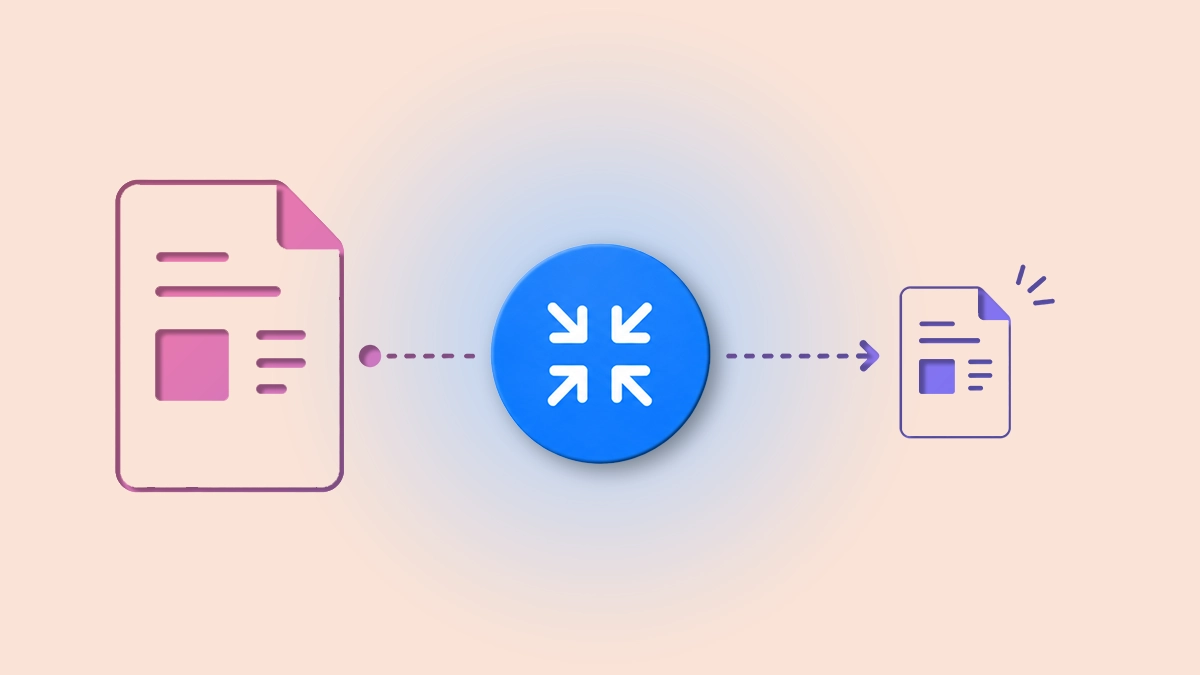
Large PDFs are slow to send, hard to upload, and often exceed attachment limits. Compress PDF in PDF Translator Pro reduces your file size in seconds — directly in your browser, without installing anything. Choose between balanced compression that preserves quality or maximum compression for the smallest possible file.
Whether you're preparing a document for email, reducing storage usage, or making a file easier to share, Compress PDF handles it in a few clicks. Upload your PDF, pick a compression level, and download a smaller file — the original is never modified.
How to Compress a PDF
The process takes under a minute:
- Open PDF Translator Pro and navigate to Compress PDF from the main menu.
- Upload your PDF by clicking the upload zone or dragging the file onto it.
- Select a compression level under Compression Quality — choose Quality for balanced results or Maximum for the smallest file size.
- Optionally, click the output filename to rename the compressed document before downloading.
- Click Compress. The file is processed on the server and downloads automatically when ready.
- After download, the result dialog shows how much smaller the file is — the percentage reduction and the final file size.
Compression Levels
Two presets cover the most common needs:
- Quality — balanced compression that reduces file size while keeping the document looking sharp. Good for documents that will be read on screen or printed. Costs 2 credits.
- Maximum — the highest compression available, producing the smallest possible file. Best when file size matters more than visual fidelity — for example, archiving or uploading to systems with strict size limits. Costs 3 credits.
For most documents — reports, contracts, presentations — the Quality preset delivers a significant size reduction with no visible difference in the output. Maximum is worth choosing when the PDF contains many high-resolution images and you need the file as small as possible.
Output File
The compressed document is saved as [original filename]_compressed.pdf by default, keeping it easy to tell apart from the source file. To use a different name, click the filename shown in the panel before compressing — a rename dialog will open where you can type any name you prefer.
Compression Results
Once processing is complete, the result dialog shows the compression outcome: the percentage by which the file was reduced and the final compressed size. This makes it straightforward to verify the result meets your needs before closing the dialog.
Cost
- Quality preset: 2 credits
- Maximum preset: 3 credits
The cost and your current credit balance are displayed in the panel before you confirm, so there are no surprises. If your balance is insufficient, the exact shortfall is shown and the app takes you to the packages page.
Tips for Best Results
- Start with the Quality preset. For most documents it reduces file size substantially with no visible quality loss. Switch to Maximum only if the result is still too large.
- Check the compression result before closing. The result dialog shows the exact size reduction. If the output is still larger than expected, consider whether the PDF contains embedded fonts or non-image content that limits further compression.
- Compression works best on image-heavy PDFs. Documents that are mostly text compress well at either setting. PDFs with many high-resolution photographs or embedded graphics benefit most from the Maximum preset.
- Rename the output to avoid confusion. The default name appends _compressed, but if you're processing multiple versions of the same document, a more descriptive name keeps your downloads folder organised.
- Already-compressed PDFs compress less. If a PDF was previously optimised or exported at low resolution, further compression will have limited effect — the tool will still process it, but the size reduction will be smaller.
Also Available on the Mobile App
Compress PDF is also available in the PDF Translator Pro mobile app. If you're on your phone or tablet, you can upload a PDF from your device and compress it directly — the same credit balance applies across both platforms.
Part of the PDF Translator Pro Suite
Compress PDF shares the same account and credit balance as Merge PDF, Split PDF, Translate PDF, Fill Out PDF, Sign PDF, and File Share. Compress a document, translate it, fill it out, and share it — all from the same platform without switching tools.
To get started, open Compress PDF from the main menu and upload your document.
Back to blog

